
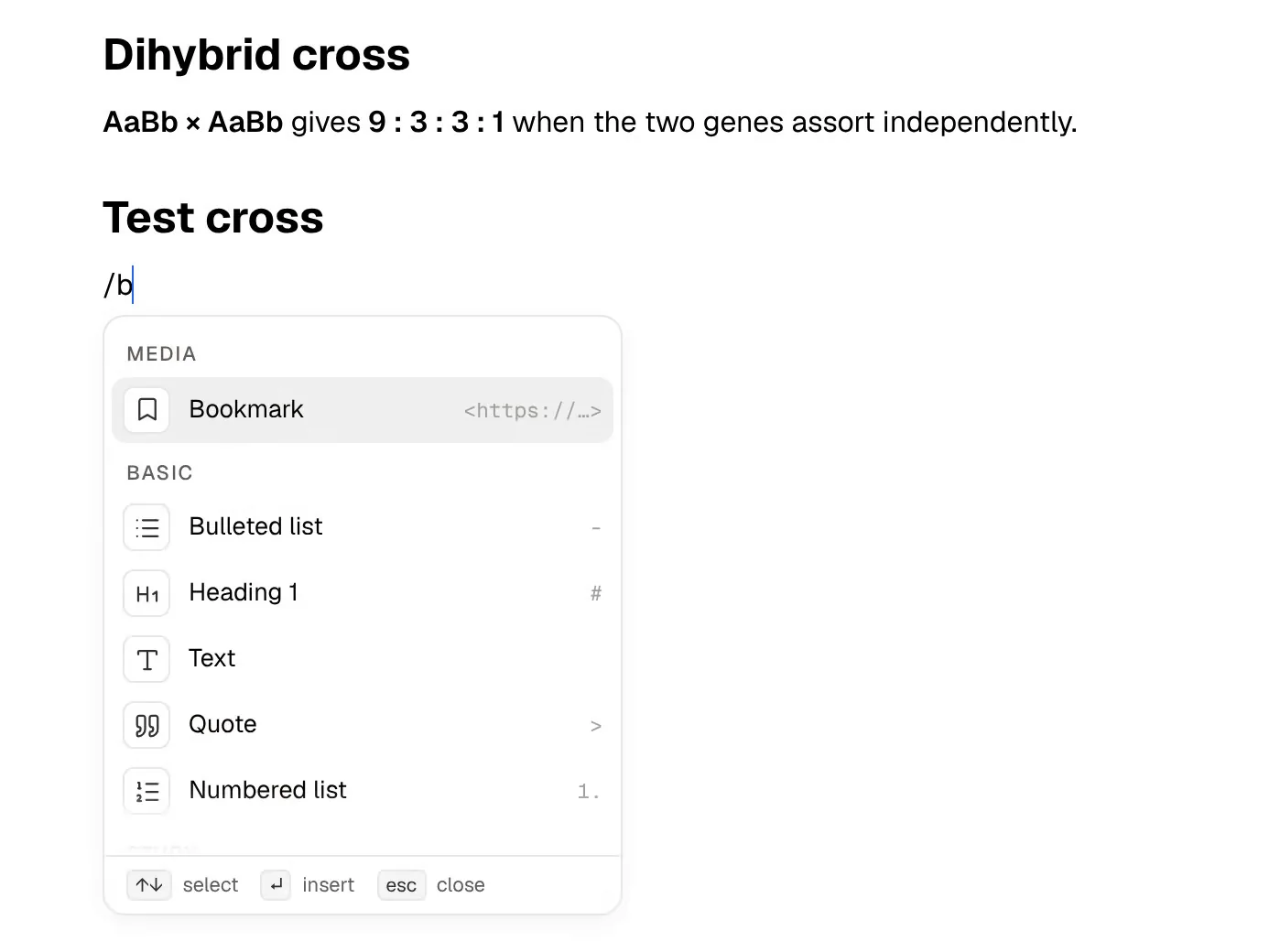
If your university runs on Microsoft 365, you may already have Microsoft Loop without having asked for it. Loop is Microsoft's collaborative workspace: pages you write together, workspaces that group them, and Loop components, small live blocks such as a table or a task list that stay in sync wherever they are pasted, including a Teams chat.
PocketNote is a study app. You bring lecture slides, readings, recordings and your own notes, and it turns them into flashcards with spaced repetition, quizzes with explained answers and a study plan for an exam date, with an assistant, Poki, that answers from your files.
Loop is for writing and planning with other people; PocketNote is for learning the material yourself. This page compares them on what students actually do with them, including what a school licence covers, where Copilot fits in, and how to use the two side by side.
At a glance
PocketNote vs Microsoft Loop
| Feature | PocketNote | Microsoft Loop |
|---|---|---|
| Built for | Studying your own course material | Co-creating pages with a group |
| Real-time co-editing | Not offered; share a link to a note | Yes, built in |
| Live blocks in Teams and Outlook | Not offered | Loop components (work or school accounts) |
| AI assistant | Poki, answers from your files with citations | Copilot, with a Copilot licence |
| Flashcards with spaced repetition | Yes, rated Again/Hard/Good/Easy | Not advertised |
| Quizzes with explained answers | Yes, generated from your sources | Not advertised |
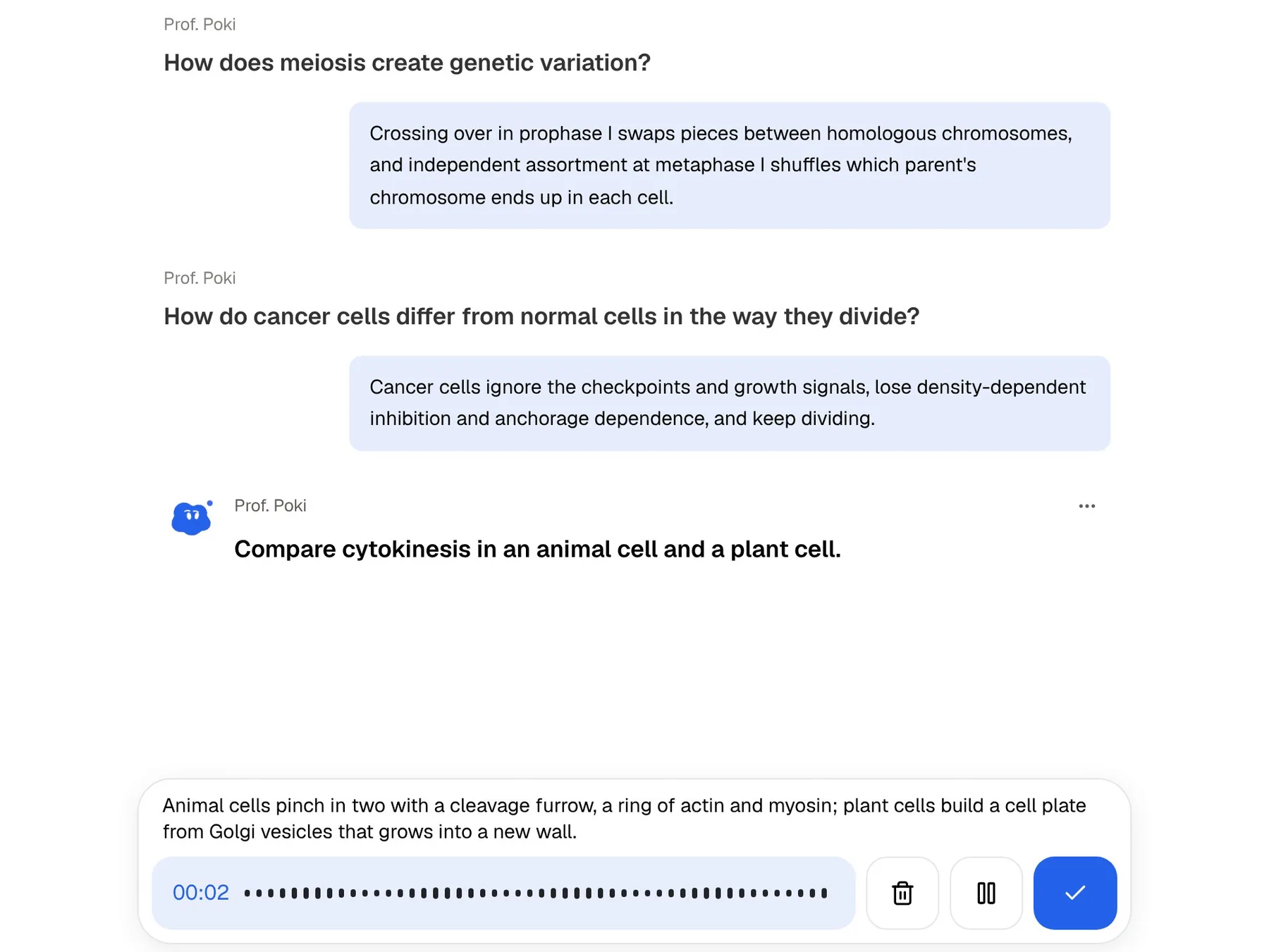
| Oral exam practice | Yes, with Prof. Poki | Not advertised |
| Record a lecture | Yes, with transcript, summary and notes | Not advertised |
| OneDrive files | Import from OneDrive | Lives alongside them in Microsoft 365 |
| Apps | Web, iPhone, iPad | Web, iOS, Android |
| Cost to a student | Free to start; Basic and Plus plans | Available with work or school accounts |
Checked against Microsoft's Loop support pages and PocketNote, November 2026. What you can use in Loop depends on your school's licences and settings.
What Loop is, and who can use it
Microsoft describes Loop as a place to think, plan and create together. A Loop workspace holds the pages for a project, and pages hold text, tables, checklists, task lists and other components. You can @mention a teammate, add a date, and use page templates for project context, notes and group decisions. When you start a new workspace, Loop looks for relevant files and documents to suggest, and you choose which notifications you get, which helps when one group chat produces a dozen updates a day.
Access depends on your account. Microsoft's support page says the Loop app is available to everyone with a work or school account, and that the Loop apps for iOS, Android and the web are available to anyone with a personal Microsoft account. Full features need a SharePoint or OneDrive licence on the account, and since June 2024 Loop workspaces and pages count toward your Microsoft storage quota.
If you have Loop through a school account, your IT department decides what is switched on. If Loop doesn't appear among your Microsoft 365 apps, ask them before assuming you can't use it.
Loop components in Teams, Outlook and Word
You don't have to open the Loop app to use Loop. Microsoft lists Teams, Outlook, Word for the web, Whiteboard, OneNote, SharePoint and OneDrive among the apps where Loop components work, and everyone who opens a component sees the same live content. A task list pasted into a group chat stays current as people tick items off, which is often the quickest way to split up a group presentation.
For coursework, the most useful components are the simple ones: a task list with an owner and a date for each section of a report, a table where everyone drops the sources they found, a checklist for what the marking criteria ask for, and a bulleted or numbered list for a shared outline. Because the component is the same object everywhere, nobody has to ask which version of the document is current.
There are two caveats. Microsoft notes that Loop components are not yet supported in Teams, Outlook or other apps when you use a personal Microsoft account, so this is a school-account feature. And Microsoft scheduled the retirement of Loop components in OneNote for the web for mid-September 2026: you can no longer insert new ones there, existing ones become links to their Loop pages, and the OneNote desktop app for Windows keeps the full experience.
Copilot in Loop depends on your licence
Loop's AI is Copilot, which Microsoft pitches as a way to co-create and to catch up on what others wrote. Whether you get it depends on licensing. Microsoft's Loop access page says a Copilot for Microsoft 365 plan is required to use Copilot features in the Loop app on work or school accounts, and that Microsoft 365 Personal, Family or Premium plans won't enable Copilot features in Loop.
Microsoft also offers Copilot Pages, described as an editable canvas created from Copilot responses, and Copilot Notebooks, now called Copilot Workspaces, where Copilot's answers are grounded in the content you add. Which of these you can use is decided by what your institution has licensed. If your school hasn't bought Copilot, Loop is a collaborative editor without the AI.
Where Loop leaves the revising to you
Loop is good at the part of studying that happens in a group: deciding who covers which reading, collecting summaries on one page, agreeing an outline for a presentation. It isn't designed for the part that happens alone the week before an exam. Microsoft's Loop pages don't describe flashcards, quizzes or spaced repetition, and a Loop page has no way of knowing which parts of a lecture you keep getting wrong.
You can type questions into a Loop table and quiz each other, which works for a study group the night before. It is still a table: someone writes every question, nobody explains the wrong answers unless they type an explanation, and nothing reschedules a question you missed.
That is the job PocketNote is built for. A quiz generated from your lecture explains every option, right or wrong, and flashcards you rate Again, Hard, Good or Easy come back when you are about to forget them.
Revising a module in PocketNote, starting from OneDrive
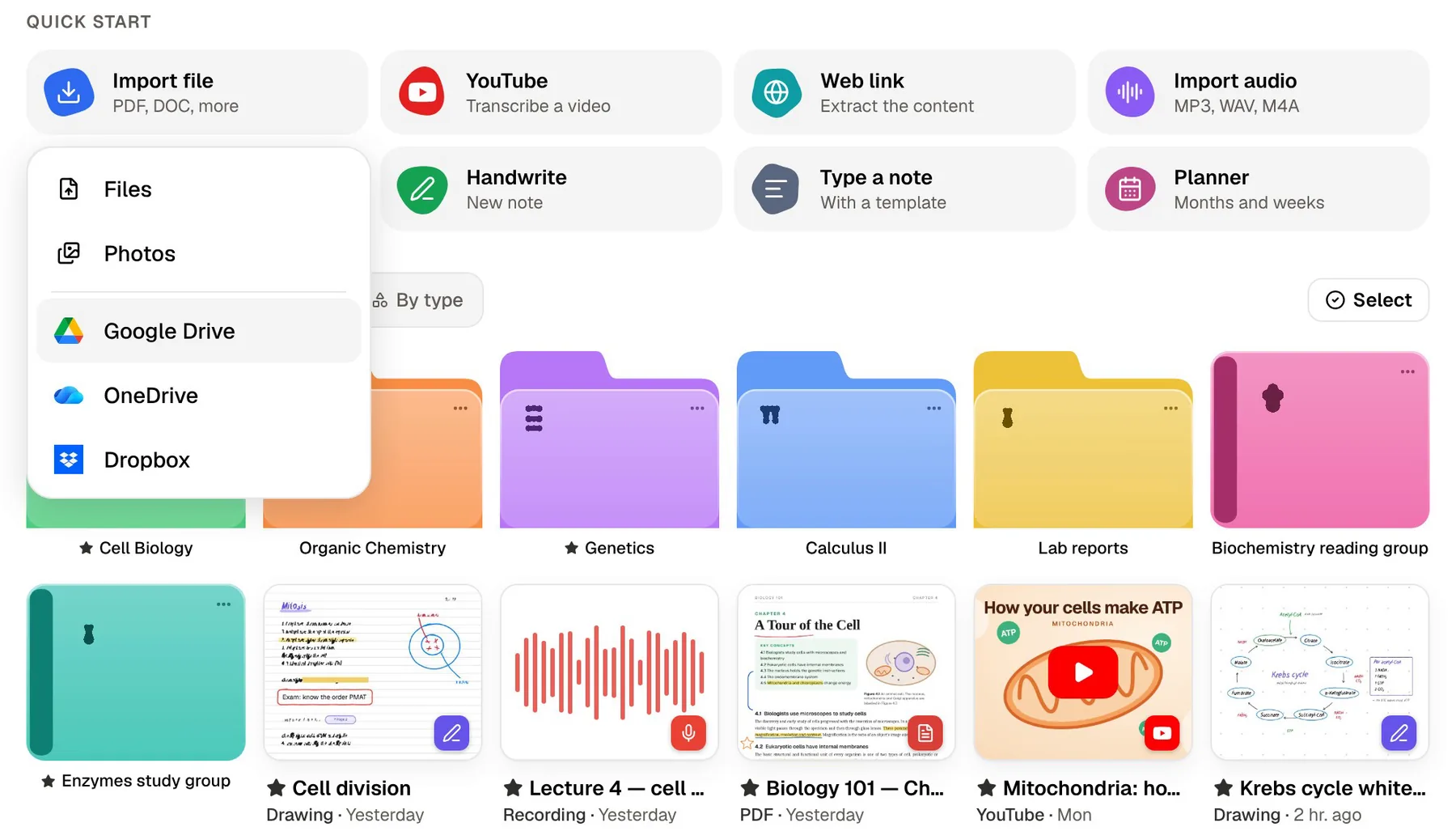
If your course files already sit in OneDrive, PocketNote can pick them up from there. The Add Sources dialog imports from OneDrive, Google Drive and Dropbox, and also takes uploaded PDFs, Word and Excel files, CSV, Markdown, text and audio files, YouTube links, web links and pasted text. You can also record a lecture in the app and get a transcript, a summary and notes.
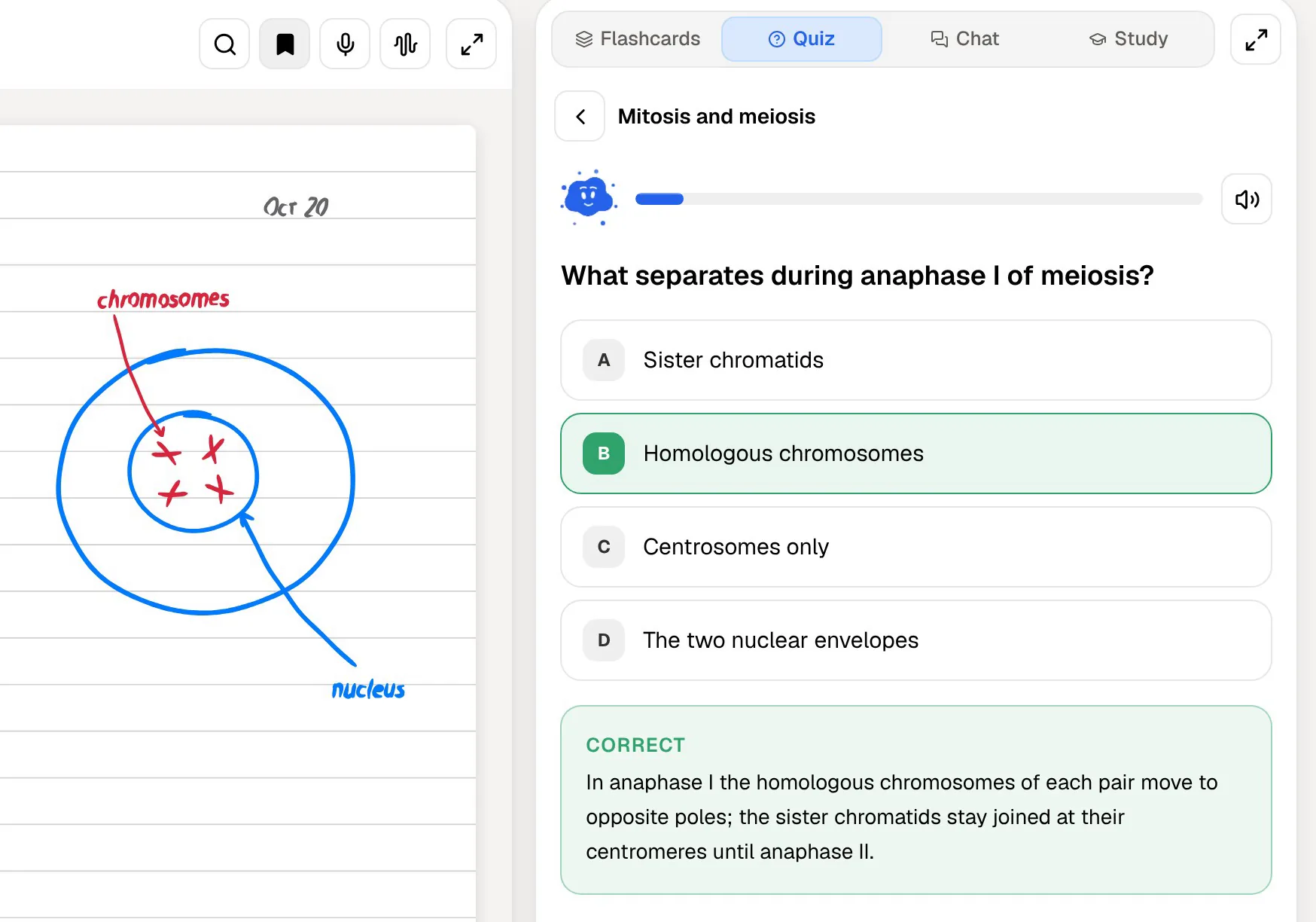
From those sources PocketNote generates the study material: flashcards with spaced repetition, quizzes with explanations, mind maps, written notes and summaries, slide decks and podcast-style audio reviews. Poki answers your questions from the same files and cites where each answer came from. On paid plans, connectors let Poki use context from services such as Outlook and OneDrive.
Set your exam date and the study plan decides what to cover each day, reminds you, and tracks memory, applied and mastery scores as you go. Study material can be in more than 50 languages, which helps if your lectures are in one language and you revise in another.
Where Loop is the better choice
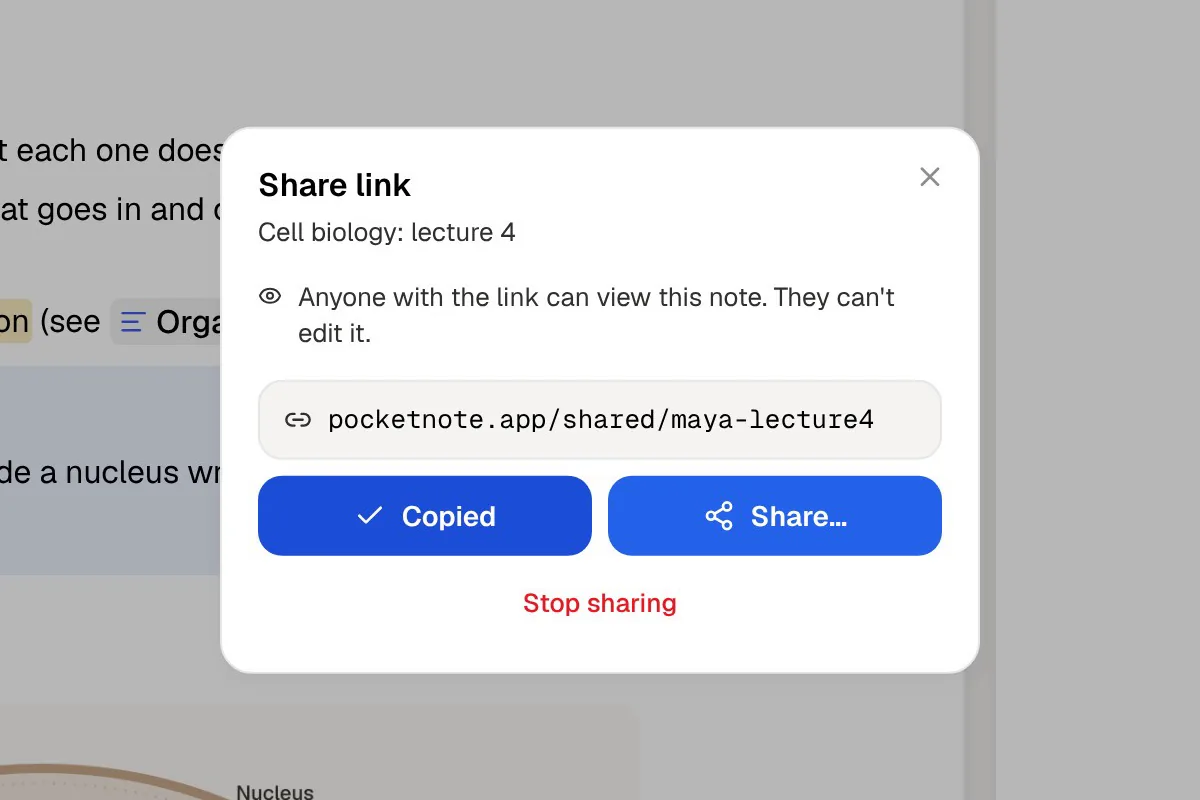
Loop wins for anything shared. Group projects, lab write-ups, society planning and peer-review rounds need several people editing at once, task lists with owners and comments in context. Loop does all of that, and it lives inside the Teams and Outlook your course already uses. PocketNote has no real-time co-editing or shared task lists; you can share a link to a note, and that is the extent of it.
Loop is also the obvious pick when it costs you nothing extra. If your school account includes it, there is no sign-up and no new app for your group to learn, and a component dropped into the module's Teams chat reaches everyone. Loop also has Android apps, which matters if your group isn't all on iPhone; PocketNote runs on the web, iPhone and iPad.
It is also a reasonable home for shared revision notes. If four people each summarise two lectures on one Loop page, the group has a combined set of notes sooner than anyone could write alone, and everyone sees edits as they happen. PocketNote is the better tool for turning those notes into practice, but Loop is the better tool for writing them together.
What each costs a student
Loop has no separate student price. With a school account, it is part of what your institution provides, subject to its settings and your storage quota. With a personal Microsoft account, the iOS, Android and web apps are available, and Microsoft markets its Microsoft 365 home plans as including Loop along with cloud storage. Copilot in Loop needs a Copilot for Microsoft 365 plan on work or school accounts.
PocketNote is free to start, with paid Basic and Plus plans. Basic adds live voice, premium AI models and connectors; Plus adds unlimited notebooks and apps, the longest podcasts and all models. See pocketnote.app for current plans.
Using Loop and PocketNote across one module
A sensible split is to keep the group's work in Loop and your own revision in PocketNote. Use a Loop page to divide up the seminar reading and collect everyone's summaries, and a task list in Teams to track who is doing which slide. When the exam gets close, put the lecture slides and readings into PocketNote and study from them on your own schedule.
Moving content from Loop is manual. Copy the text of a Loop page into a typed PocketNote note, or use Loop's print and PDF export and import the PDF. Once your group's summaries are in PocketNote, they become one more source: Poki can answer from them, and you can generate flashcards from them alongside the lecture material.
Over a ten-week module, that might look like this. In the early weeks, the group's Loop workspace holds the project brief, a task list and the shared reading summaries, while each lecture goes into PocketNote as it happens, recorded in the app or imported from OneDrive. Once the exam date is announced, you set it in PocketNote, import the group's summary page as a PDF, and follow the study plan. In the last week, you use an oral exam with Prof. Poki, out loud or in text, to check that you can explain each topic rather than just recognise it.
The verdict
Which one should you pick?
Pick PocketNote if…
- You need to learn the material for an exam, not just organise it: flashcards, quizzes and an oral exam from your own lectures.
- You want an assistant that answers from your course files with citations, whether or not your school has Copilot.
- Your lecture files live in OneDrive and you want them turned into study material in one place.
- You want a study plan that counts down to the exam date and tracks your mastery.
Pick Microsoft Loop if…
- You work on group projects inside Teams and Outlook and want live task lists and tables everyone can edit.
- Your school account already includes Loop, so it costs you nothing extra.
- Your institution licenses Copilot, and you want AI help drafting and catching up on shared pages.
- Some of your group use Android phones.
Try it yourself
See it with your own notes
PocketNote is an AI study app for the files your course gives you. It imports PDFs, Word and Excel files, audio, YouTube and web links, including straight from OneDrive, Google Drive or Dropbox, and records lectures in the app. Poki answers from that material with citations, and the same sources become flashcards, quizzes, oral exams, mind maps and audio reviews.
It runs in any browser at pocketnote.app and on iPhone and iPad, and it is free to start. Keep Loop for the group work your course runs in Microsoft 365, and use PocketNote for the revision you do on your own.
Frequently asked questions
Sources
Keep reading