
Merge PDF
Combine lecture slides, notes and readings into one PDF. Add PDFs or photos of your notes, put them in order, choose the pages you want, and download a single file. It all happens in your browser, so nothing is uploaded.
- No account needed
- Free, no limits
- Saved on your device
How it works
- 01
Add your files
Drop in PDFs, or JPG and PNG images such as photos of handwritten notes. Up to 50 files and 200 MB at a time.
- 02
Set the order and pages
Drag files into order, or use the arrows. To keep only some pages of a file, type a range like `1-3, 7`.
- 03
Merge and download
Press Merge PDF to get merged.pdf, built on your device. Each image becomes one A4 page.
One file per topic
Revise from one PDF, not twelve tabs
A single week of a course often arrives as separate files: the lecture slides, a handout, your own notes and a couple of assigned readings. Revising from them means switching between tabs and losing your place. Merged in the order the course teaches them, they become one document you can read top to bottom, annotate, print or put on a tablet. One PDF per week or per topic works well: small enough to open quickly, complete enough that a study session needs nothing else.
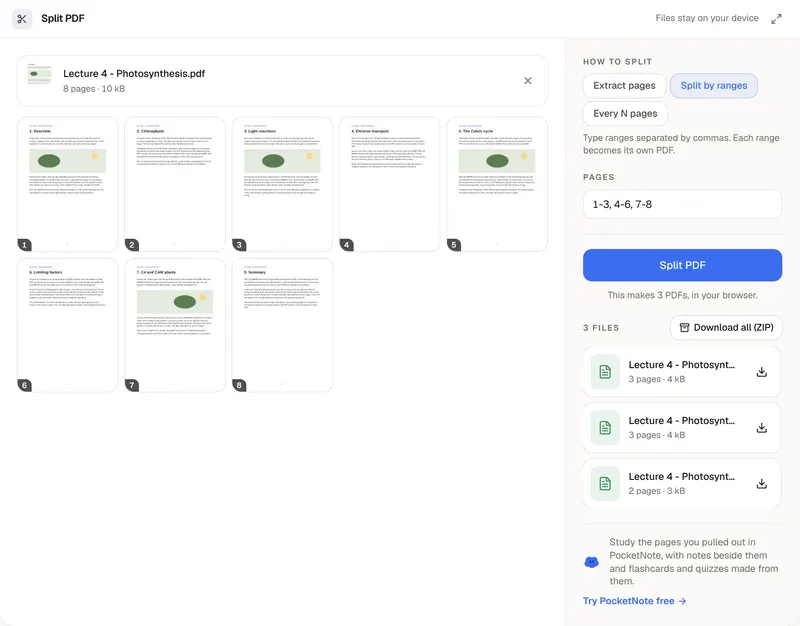
Use page ranges to keep the file lean. Leave out title slides, reading lists you already have, or chapters that aren't on the exam: 3-20 keeps pages 3 to 20, 1-3, 7 keeps pages 1 to 3 and page 7, and 5- runs from page 5 to the end. You can add photos of handwritten notes or the whiteboard as JPG or PNG too. Each one becomes an A4 page wherever you place it, so your own summary can sit right after the slides it explains.
Most PDF websites upload your files to their servers to process them. This tool doesn't: your browser reads the files and builds the merged PDF on your device, and nothing is sent anywhere. That matters for unpublished coursework, past papers your tutor shared, or anything with your name and student number on it. There's no queue and no account either. The limits are 50 files and 200 MB per merge, and very large files depend on how much memory your device has.
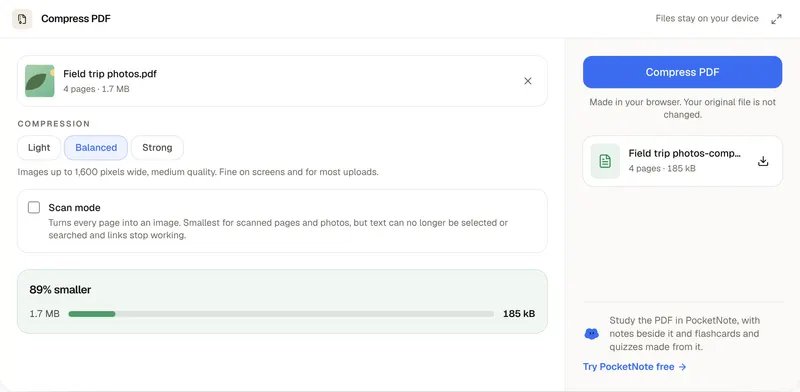
The tool joins pages exactly as they are. It doesn't edit text, compress the file or recognise text in scans: a scanned PDF merges fine, but its pages stay images. PDFs protected with a password or editing restrictions can't be merged until the protection is removed, and bookmarks from the original files aren't carried over. In PocketNote, the merged PDF goes into a course notebook next to your notes, the app can read scanned pages, and flashcards and quizzes are made from what's inside.
Want more than the free tool? See how this works inside PocketNote
FAQ
Questions, answered
From one PDF to flashcards
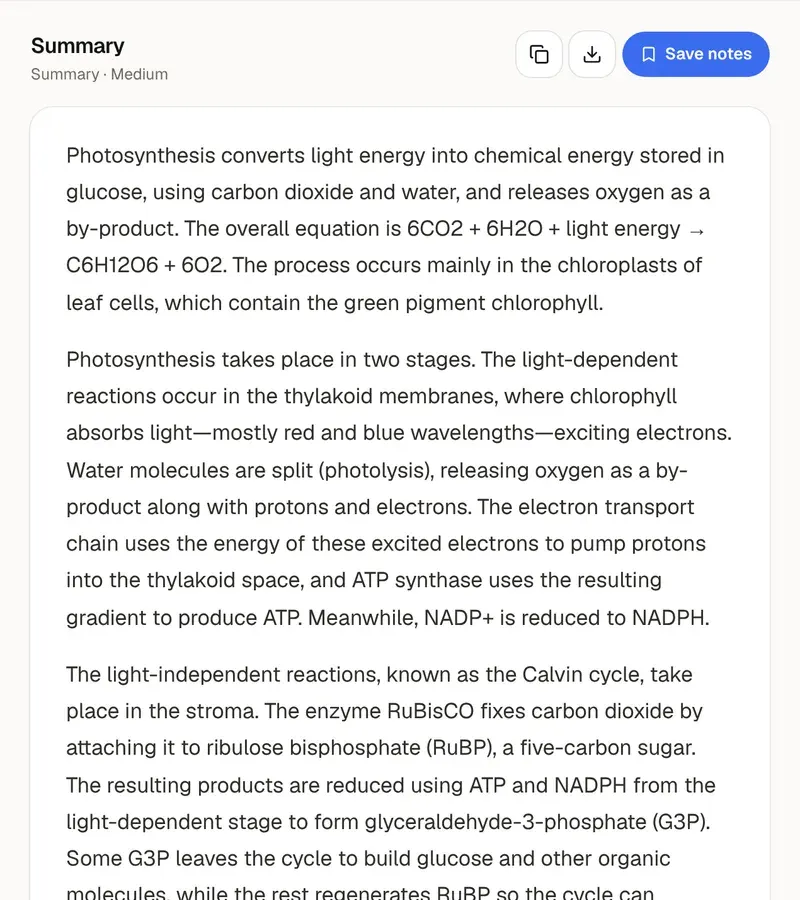
PocketNote keeps your PDFs with your notes and makes flashcards and quizzes from them.