
Split PDF
Add a PDF and see its pages as thumbnails. Pull out the pages you need as one new PDF, cut the file into several by ranges, or split it every few pages. It all happens in your browser, so the file is never uploaded.
- No account needed
- Free, no limits
- Nothing is uploaded
How it works
- 01
Add your PDF
Drop in one PDF, up to 200 MB. Its pages appear as thumbnails, with previews for the first 120 pages and page numbers for the rest.
- 02
Choose how to split
Extract pages gives one PDF with the pages you click or type, like `1-3, 7`. Split by ranges makes a PDF for each range. Every N pages cuts the file into equal parts.
- 03
Download the result
One result downloads as a PDF. Several can be downloaded one by one or all together as a ZIP file, each named after the original with its page numbers.
Only the pages you need
Carry the chapter, not the whole book
Course material often arrives as one big file: a whole textbook when this week covers chapter 6, the slides for the entire term, a scanned packet of past papers. You only need part of it. With Extract pages, find the first and last page of the chapter in the thumbnails, type the range, and you get a small PDF that holds just that chapter. It opens quickly on a phone, is easier to annotate or print, and can be shared with a study group without sending the rest. A file that covers one topic is also a better fit for the PDF summarizer and chat with PDF, which work on one file at a time.
The three modes do different jobs. Extract pages gives you one new PDF, and the pages don't have to sit next to each other: 1-3, 7 keeps pages 1 to 3 and page 7. Split by ranges is for several files at once. Type 1-12, 13-30, 31-48 and each range becomes its own PDF, one per chapter or lecture. Every N pages cuts the file into parts of a fixed size, which suits a scanned stack of two-page worksheets; set it to 1 and every page becomes its own PDF. When there are several results you can download them one by one or all together as a ZIP file.
Splitting doesn't change the pages. They are copied as they are, so text stays selectable, the quality is the same as in the original, and links inside the pages still work. The document's bookmarks are not carried over to the new files. Each output file is named after the original with its page numbers, so you can tell the parts apart later. Most PDF websites upload your file to their servers to split it. This one doesn't: your browser reads the PDF and builds the new files on your device. That matters for coursework with your name and student number on it, and it means the tool keeps working offline once the page has loaded.
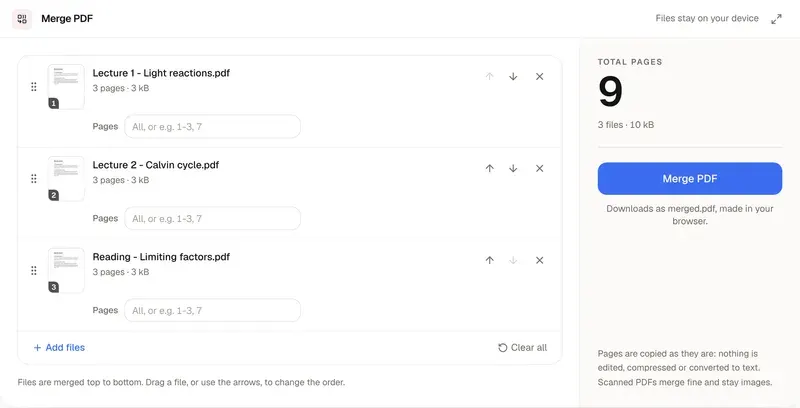
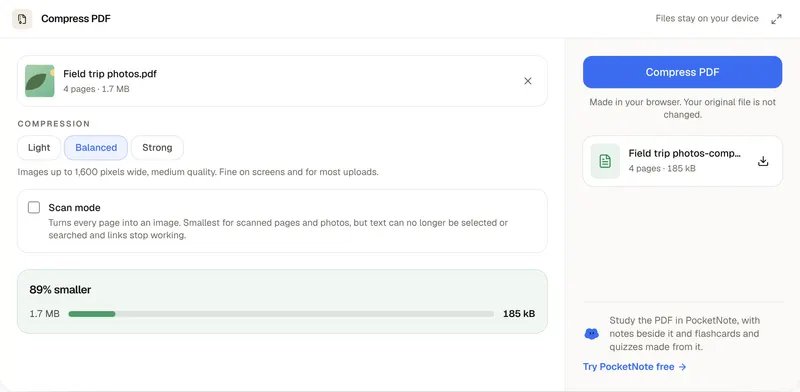
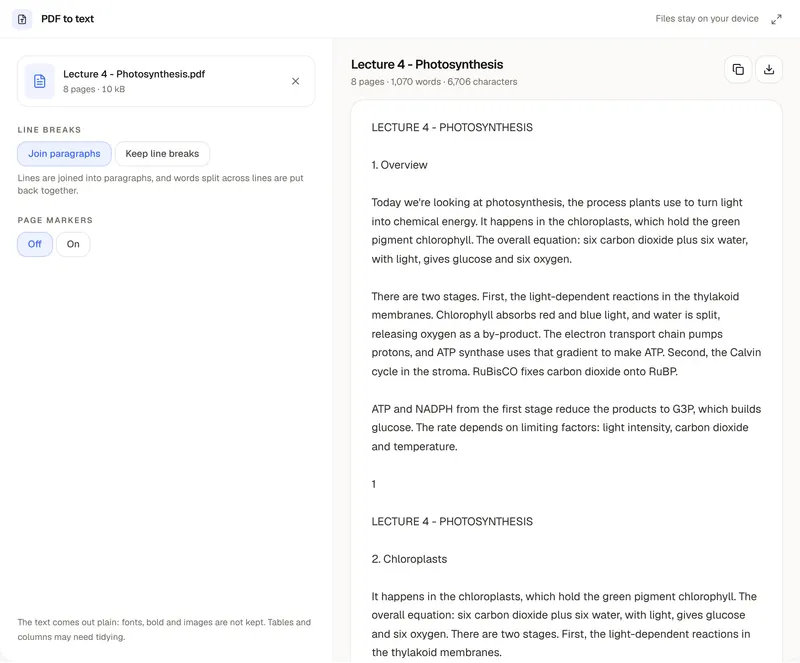
A few limits. A password-protected PDF can't be opened here, so remove the password first. Files can be up to 200 MB. Splitting doesn't shrink the pages themselves: a part is as big as the pages it holds, so if an upload limit is the problem, run the part through Compress PDF afterward. To put parts back together in a new order, use Merge PDF, and to get the words out of a chapter, use PDF to Text. PocketNote keeps a course's lectures, PDFs and notes in one notebook, reads whole books and scanned PDFs, and makes summaries, flashcards and quizzes from them.
Want more than the free tool? See how this works inside PocketNote
FAQ
Questions, answered
Keep reading
Go deeper into the science
Turn that chapter into flashcards
PocketNote keeps a course's PDFs with your notes and makes summaries, flashcards and quizzes from them.