
Compress PDF
Add a PDF and choose how hard to compress it. The photos and scans inside are re-saved smaller, while text, fonts and links stay as they are. You see the size before and after, and the file never leaves your browser.
- No account needed
- Free, no limits
- Nothing is uploaded
How it works
- 01
Add your PDF
Drop in one PDF, up to 200 MB. Your browser reads it on your device, and nothing is uploaded.
- 02
Pick a level
Light keeps images up to 2,400 pixels wide at high quality. Balanced, the default, goes to 1,600 pixels. Strong goes to 1,100 pixels at lower quality. Scan mode turns every page into an image.
- 03
Compare and download
Check the size before and after and the percentage saved, then download the smaller copy. Your original file isn't changed.
Under the upload limit
Small enough to submit, clear enough to read
Assignment portals and email both put a cap on file size, and a report with phone photos, lab pictures or scanned pages can go well over it. The reason is the images: each photo is stored with far more detail than a page on a screen can show. Compress PDF re-saves the photos and scans inside the file at a lower resolution and JPEG quality, and tidies the file's structure. Text, fonts and links are left as they are, so the text can still be selected and searched. Start with Balanced, then open the result and look at the smallest things on the page, such as axis labels, handwriting and footnotes.
The three levels trade size for detail. Light keeps images up to 2,400 pixels wide at high quality; use it when figures have small labels or the file may be printed. Balanced, the default, goes to 1,600 pixels at medium quality, which is plenty for reading on a screen. Strong goes to 1,100 pixels at lower quality, for when the limit is tight. After each run you see the size before and after and the percentage saved. If the file can't be made smaller, because it is mostly text or already compressed, the tool says so and doesn't hand you a bigger file. A typed essay with no images is already small, and there is nothing to gain.
Scan mode is a separate switch. It turns every page into an image, which gives the smallest file for scanned documents and photo-heavy PDFs. The cost is real: the text can no longer be selected or searched, and links stop working. That is fine for scanned handwritten work, where the pages were pictures to begin with. Don't use it for a typed essay or report, because the marker can no longer search it or copy a sentence from it. If you aren't sure, compress at Strong first and switch Scan mode on only if the file is still over the limit.
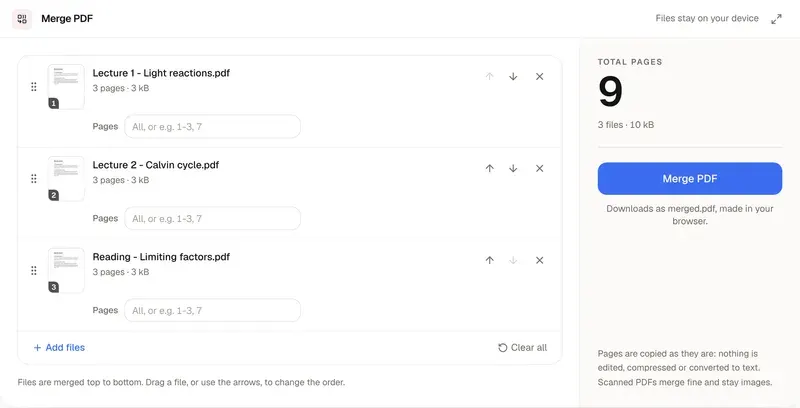
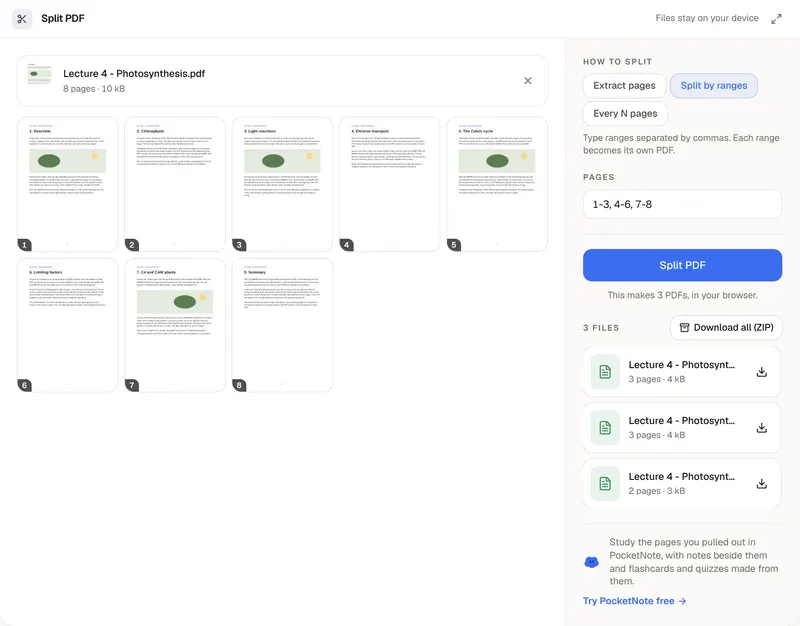
Compression is lossy: detail removed from an image can't be put back. The result is a copy and your original file isn't changed, so keep the original. Some images are left untouched, including CMYK print images, black-and-white fax-style scans and very small images. A password-protected PDF can't be opened until the password is removed. If the file is still too big, use Split PDF to drop the pages you don't need, and if you have several files to hand in, join them with Merge PDF first and compress once. PocketNote keeps a course's lectures, PDFs and notes in one notebook, reads whole books and scanned PDFs, and makes summaries, flashcards and quizzes from them.
FAQ
Questions, answered
Keep reading
Go deeper into the science
Keep the PDF where you study
PocketNote keeps a course's PDFs, lectures and notes in one notebook and makes summaries, flashcards and quizzes from them.