
Image to PDF Converter
Add photos of your handwritten work, screenshots or scans and get one PDF with a page for each image. Put them in order, rotate the ones that are sideways, and choose the page size and margin. Everything happens in your browser, so nothing is uploaded.
- No account needed
- Free, no limits
- Nothing is uploaded
How it works
- 01
Add your images
Drop in JPG, PNG or WebP images, up to 100 images and 200 MB in total. Phone photos are turned the right way up automatically.
- 02
Order, rotate and set the page
Drag the images into order or use the arrows, and rotate any image in 90° steps. Choose Fit to image, A4 or US Letter, then the orientation and the margin.
- 03
Download one PDF
Download a single PDF with each image on its own page. It's built on your device from the images as you arranged them.
Paper work, handed in online
Handwritten work, handed in as one PDF
A problem set worked out by hand still has to go through a portal that wants one PDF. Photograph each sheet with your phone, add the photos here, put them in order and download the file. The photos decide how the result looks. Lay each sheet flat in good light, hold the phone straight above it, and let the page fill the frame. Take one sheet per photo, and number the sheets in a corner before you start so the order is easy to check. If a photo comes out sideways, rotate it here in 90° steps; photos that your phone marked as rotated are turned the right way up on their own.
The page settings change how the PDF reads. Fit to image makes each page exactly the size of its image, with no white border, which suits screenshots and anything that will only be read on a screen. A4 and US Letter give standard pages for work that may be printed. With those two sizes, orientation can follow each image automatically, or you can set every page to Portrait or Landscape. The margin can be None, Small or Large. A margin keeps writing that runs to the edge of the sheet away from the edge of the page, which helps if the file is printed later.
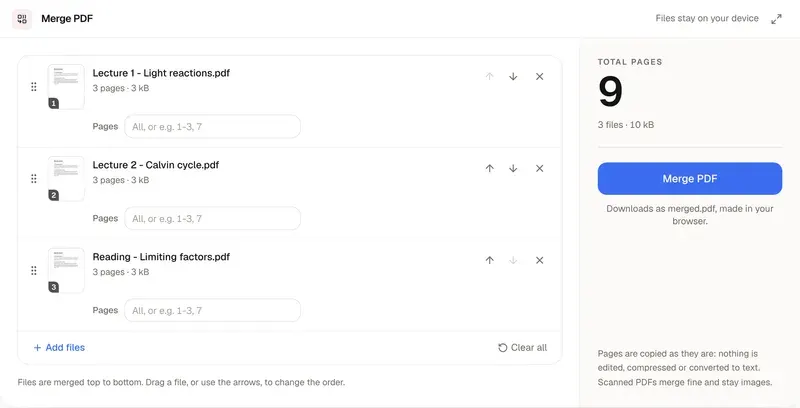
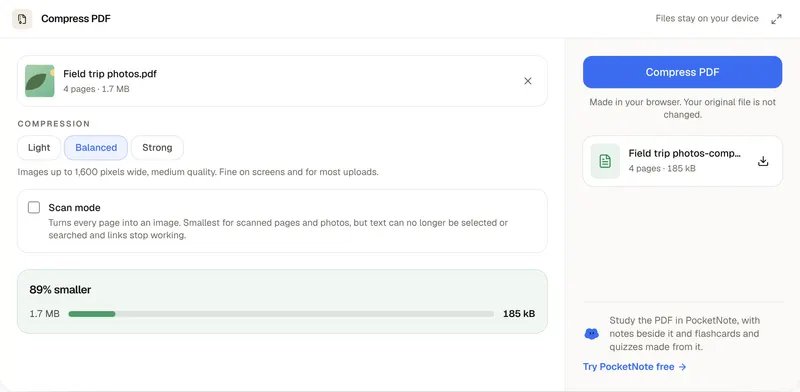
The images are not degraded on the way in. JPGs go into the PDF as they are, without being recompressed, unless you rotate them. PNG transparency is kept, and WebP images are converted as they are added. That also means the PDF is about as large as the images it holds, so a set of full-size phone photos can be a big file. If it is over an upload limit, run it through Compress PDF. To add the pages to a PDF you already have, such as a typed cover sheet, use Merge PDF. Nothing is uploaded at any point: your browser builds the PDF on your device.
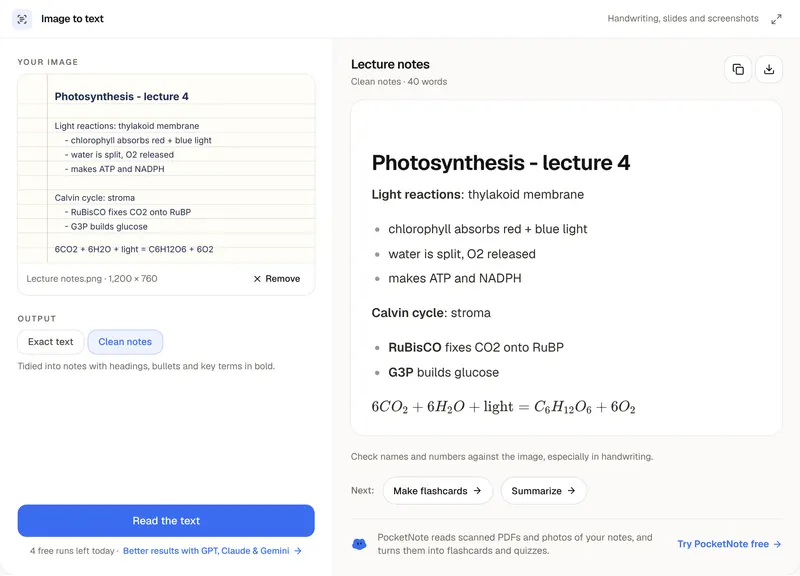
This tool puts pictures on pages. It doesn't read the text in them, so the PDF can't be searched and its text can't be selected or copied. To get the words out of a photo, use image to text. The limits are 100 images and 200 MB in total, and the formats are JPG, PNG and WebP. Before you hand the file in, open it and page through it once to check that every sheet is there, in order and the right way up. PocketNote keeps a course's lectures, PDFs and notes in one notebook, reads whole books and scanned PDFs, and makes summaries, flashcards and quizzes from them.
FAQ
Questions, answered
Photos of notes, made into something to study
PocketNote keeps your PDFs and notes in one notebook, reads scanned pages, and makes summaries, flashcards and quizzes from them.