
Image to Text Converter
Add a photo or a screenshot of a page, a slide, a whiteboard or your own handwriting. The AI reads the text and gives it back exactly as written or as clean notes, ready to copy or download.
- No account needed
- 5 free AI runs a day
- Photos aren't stored
How it works
- 01
Add an image
Upload a JPG, PNG or WebP, drag it in, paste it from the clipboard, or take a photo with your phone. The image is scaled down in your browser before it is sent.
- 02
Choose exact text or clean notes
Exact text transcribes what is written and corrects nothing. Clean notes formats it with headings, bullets and bold key terms, and fixes obvious spelling slips.
- 03
Copy or download
Check the result against the image, then copy the text or download it: Markdown for clean notes, a plain text file for exact text.
From photo to notes
A photo of your notes isn't notes yet
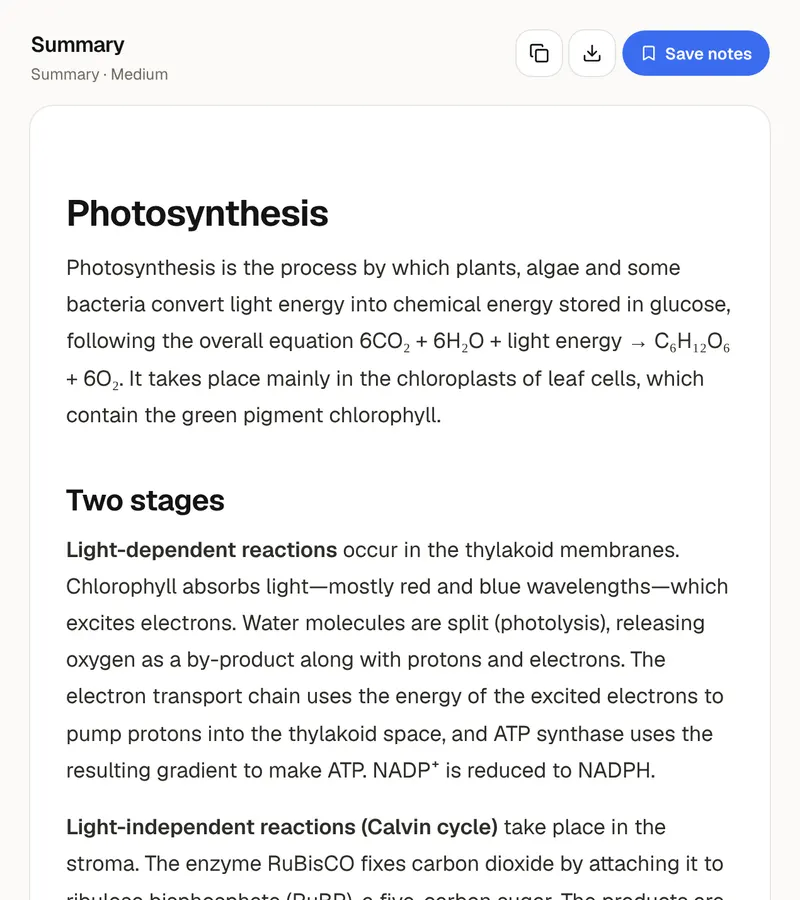
Photos of whiteboards, slides and textbook pages pile up in a camera roll where you can't search them, edit them or study from them. As text, the same material can be searched, corrected, rearranged and turned into something to practice with. The two modes cover the two usual cases. Choose Exact text when the wording matters, such as a quotation, a handout or a list of problems, because nothing is corrected or added. Choose Clean notes for your own handwriting or a crowded whiteboard: you get headings, bullets and bold key terms, with obvious spelling slips fixed and nothing added.
The photo decides most of the result. Take it in good light, straight on and not at an angle, and crop it to the text so the page fills the frame. For a whiteboard, stand in front of it and move until there is no glare on the writing. One page or one board per image works best. Printed text, handwriting, slides and screenshots are all read in the language of the image. Very small, blurry or slanted handwriting is read less reliably, so if a photo comes back with gaps, a closer and sharper shot usually helps more than trying again with the same one.
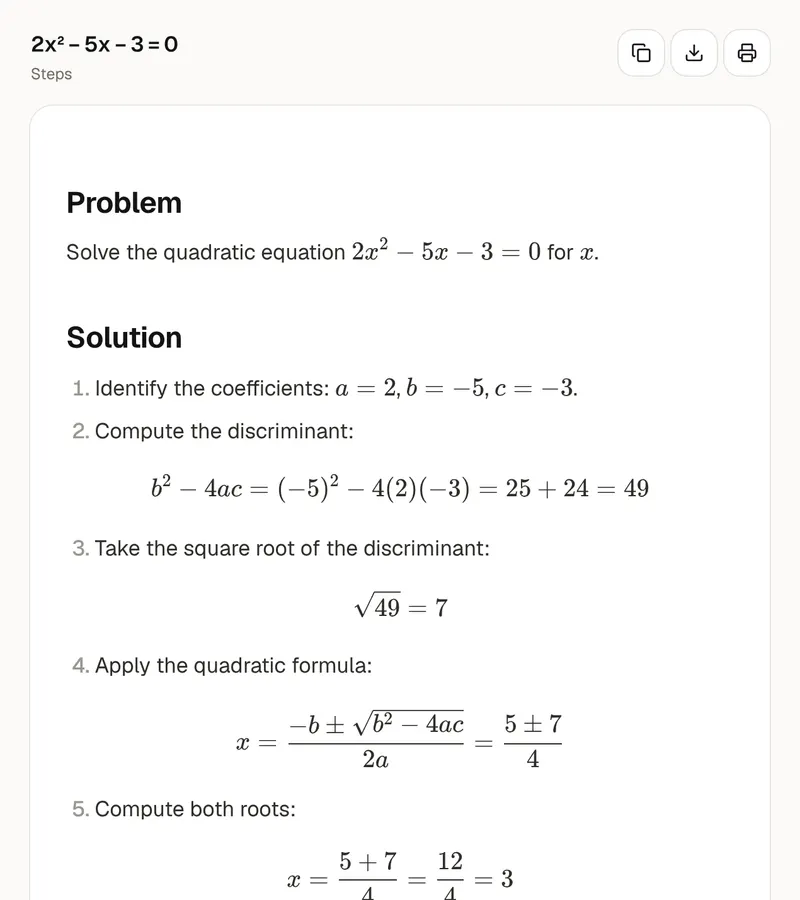
Check the text before you rely on it. Names, numbers, dates and formulas are where a misread costs the most, so compare those with the image. A word the tool can't read is marked [illegible] and never guessed, which shows you exactly where to look. In Clean notes, tables come out as tables and formulas as math notation; Exact text keeps both as plain characters. Remember what each mode does with mistakes: Exact text keeps the writer's typos, because it transcribes what is there, and Clean notes fixes only obvious slips. Neither mode adds information that isn't in the image.
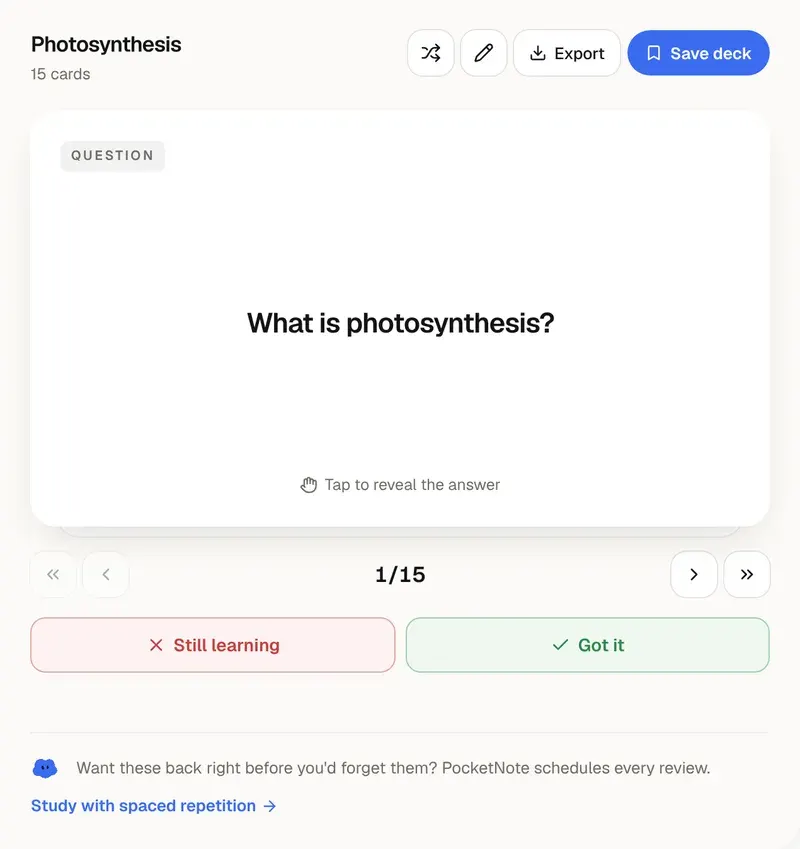
Each run reads one image. The image is scaled down in your browser, sent to the AI to be read, and not stored. The tool does not read PDFs; for those, use the PDF summarizer or chat with PDF. Once you have the text, put it to work: paste it into the flashcard maker for a deck, or into the Cornell notes generator for a page with cues and a summary. PocketNote's app reads scanned PDFs and whole books, keeps a course's lectures, PDFs and notes in one notebook, and makes flashcards, quizzes and study guides from them.
Want more than the free tool? See how this works inside PocketNote
FAQ
Questions, answered
Turn the camera roll into a notebook
PocketNote's app reads scanned PDFs and whole books and makes flashcards and quizzes from a course's material.